Gboard - the Google Keyboard
- 4.5
- Rating
- 10.00B
- Installs
- Free
- Price

 Analysis by App-foxy
I use my phone keyboard for far more than typing short messages. I search while walking, answer work chats, fill in forms, switch between languages, and occasionally send a GIF when plain text feels too serious. That is why a keyboard deserves more attention than it usually gets. A poor one slows down every app; a good one almost disappears into the background. After spending time with Gboard, Google’s keyboard app, I see it as a practical choice for people who want a fast, familiar typing tool with useful extras rather than a highly specialized writing environment.
Gboard is a free tools app from Google LLC, available to users of all ages. It has been around since June 5, 2013, and its scale is hard to ignore: it has passed ten billion installs, with an average rating of 4.5 from about nineteen million ratings and roughly four hundred thirty-nine thousand written reviews. Those figures do not automatically make it the best keyboard for every person, but they do suggest that its basic design works for a very broad audience. My recommendation depends less on those numbers and more on how you type, what you expect from suggestions, and how comfortable you are using Google’s approach to a keyboard.
What I Look For Before Choosing a Phone Keyboard
My first decision criterion is accuracy during ordinary typing. I do not need a keyboard to impress me with a long feature list if it regularly changes names, slang, or technical terms into something I did not intend to write. I look at how easily I can correct mistakes, whether the layout feels stable, and how much attention the keyboard demands while I am composing a message. Gboard performs well here because it combines conventional tapping with gesture typing, so I can choose the method that suits the situation instead of being locked into one style.
In-Depth Coverage of Gboard - the Google Keyboard
The second criterion is speed without losing control. Suggestions are helpful when they finish a familiar word or catch a simple typo, but they become irritating when they aggressively rewrite a sentence. In my experience, Gboard is at its best when I type quickly and accept suggestions selectively. I still check names, addresses, and unusual words before sending them. That habit matters with any predictive keyboard, including this one, because convenience should not replace a quick look at the final message.
I also consider how often I need to change languages, add symbols, or insert something visual. A keyboard that handles English well but makes multilingual conversations awkward is not a good fit for me. Gboard makes language switching accessible from the keyboard itself, and its emoji, GIF, and sticker-related tools keep those choices close to the text field. This is especially useful when I move between personal chats, work conversations, and searches without wanting to open a separate app each time.
Privacy and comfort are part of the decision too. A keyboard sees what I type in the sense that it is the tool receiving my input, so I would not install one casually or enable every optional capability without thinking. Gboard’s connection to Google may reassure people who already use Google services, while others may prefer a keyboard from a developer whose main focus is minimal data collection or offline operation. I would not treat a keyboard as a neutral accessory; it sits in an unusually sensitive place on a phone.
The everyday typing experience feels familiar quickly
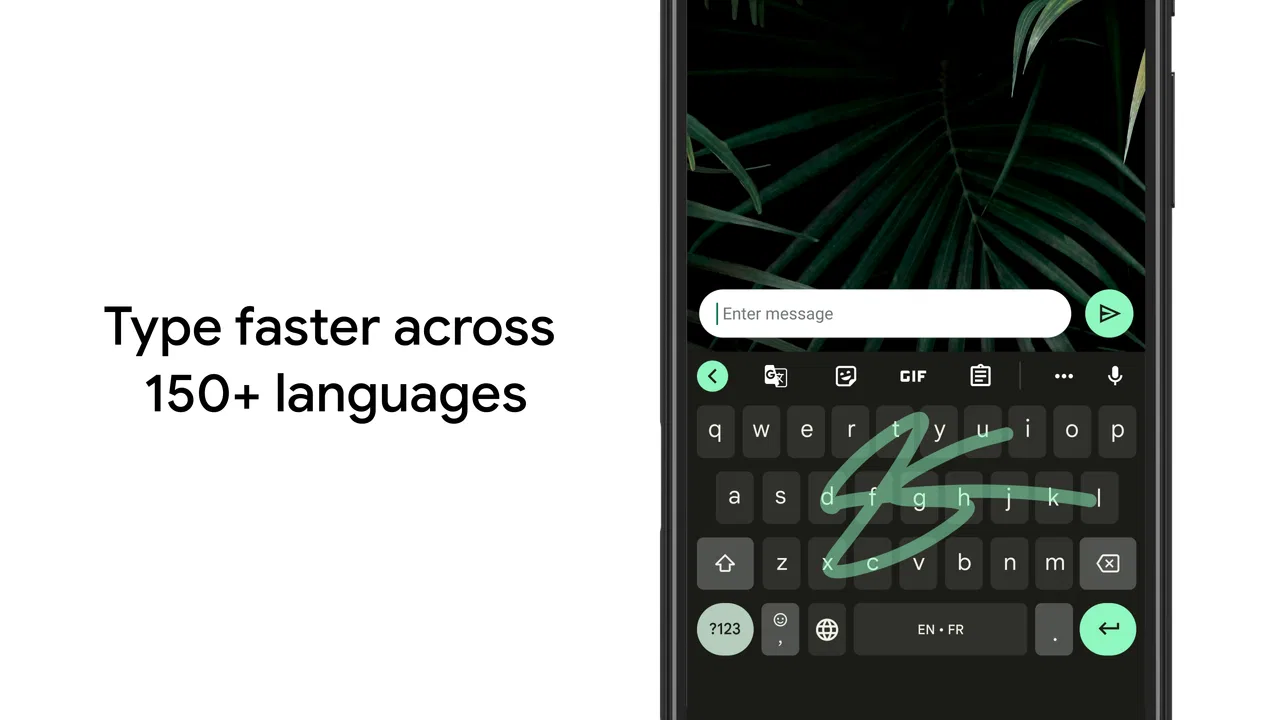
The strongest quality of Gboard is that it rarely asks me to relearn basic typing. The standard letter layout is easy to recognize, the suggestion strip is positioned where I expect it, and common punctuation is close enough for quick messages. I can type normally when I want precision, then switch to sliding across letters when I want speed. That flexibility makes the app suitable for someone moving from a basic built-in keyboard rather than only for experienced power users.
Gesture typing is particularly useful when I am holding the phone in one hand. Instead of tapping each letter carefully, I drag across the word and let the keyboard interpret the path. It is not perfect with every name or uncommon term, but it reduces effort for ordinary sentences. I find it most effective when I keep my movements smooth and avoid trying to correct every tiny deviation. The feature rewards a relaxed style more than a rigid one.
Voice input adds another way to compose text when my hands are occupied. I use it for rough drafts, quick reminders, and longer messages that would be tiring to type on a small screen. I still proofread because spoken punctuation and unusual names can produce mistakes. The useful insight here is that voice input works best as a first draft tool, not as a promise that every spoken sentence will arrive perfectly formatted.
Small tools make a larger difference than the headline features
Emoji search is one of the features I use more than I expected. Rather than scanning through several categories, I can type a word and look for a matching symbol. That is a minor time saver, but it is exactly the kind of small improvement that matters when I am replying quickly. The same applies to GIF search: I can look for a reaction from the keyboard instead of leaving the conversation, searching elsewhere, and returning to paste it.
Clipboard access is another practical part of my routine. When I need to reuse a short piece of text, a copied address, or a frequently entered phrase, having clipboard content available from the keyboard can reduce app switching. I treat this as a convenience rather than a replacement for a dedicated password manager or secure note system. Sensitive information should not be casually copied and left available in a keyboard clipboard workflow.
Text editing controls are valuable on touchscreens because placing the cursor precisely can be frustrating. Moving through a sentence, selecting a section, or correcting a word in the middle of a paragraph is easier when the keyboard gives me more direct control than repeated tapping. This becomes noticeable when I am editing an email or a long form rather than sending a two-line message. Gboard is not a full document editor, but it helps reduce the awkwardness of editing text on glass.
One of my favorite practical habits is using the keyboard as a quick conversion point between typing styles. I can begin with gesture typing, switch to tapping for a name, insert an emoji, and then continue with voice input if the message becomes longer. That mixed workflow is more useful than treating each input method as a separate mode. It also explains why I find Gboard more capable than a keyboard that focuses only on prediction.
You May Also Like

 Lords Mobile: Kingdom Wars
Lords Mobile Is a Kingdom-Building Routine, Not a Quick Match
A case-by-case verdict on the building, battles, device demands, and social commitments that make Lords Mobile rewarding for some players and exhausting for others.

 PDF Scanner app - TapScanner
TapScanner Makes Paperwork Easier to Capture, Check, and Share
TapScanner makes scanning with a phone feel less like a rescue operation and more like a dependable step in getting work done. Its capture tools are useful, though not flawless.

 Block Blast!
Block Blast! Shows How Much a Puzzle Game Can Leave Out
A quiet grid game shows why puzzle players increasingly value instant clarity, repeatable skill and low-pressure play—and where the genre still needs to catch up.

 Family Space
Family Space Review: A Shared Routine That Makes Family Life Easier
A parenting app earns its place not by adding more noise, but by making everyday coordination easier. Family Space gets that balance mostly right.

 1Weather Forecasts & Radar
1Weather Forecasts & Radar Makes the Daily Check Worthwhile
A good forecast does more than predict rain. This week's pick turns changing conditions into a clear, practical reason to check before you step outside.

 Clash of Clans
Clash of Clans Makes Patience Part of the Strategy
A village builder with a sharp tactical core, Clash of Clans turns patience into momentum and each raid into a small, satisfying act of judgment.
More From Our News Desk
View All News


Language switching is helpful, but it still needs supervision
For multilingual users, the ability to keep more than one language available can make daily conversations much smoother. I often write messages that mix ordinary English with names, borrowed words, or phrases from another language. Gboard reduces the need to visit settings every time I switch context. The important trade-off is that automatic suggestions can become less predictable when several languages are active, so I prefer to choose the intended language deliberately when accuracy matters.
This is also where personal vocabulary makes a difference. Names, local expressions, specialist terms, and informal spellings may not be recognized immediately. Repeated use can make the keyboard feel more accommodating, but I would not assume that every unusual word will be learned in exactly the way I expect. For professional writing, I slow down and review the text. For casual chat, I accept that a few corrections may be necessary.
Where Gboard wins against the usual alternatives
Compared with a very basic system keyboard, Gboard offers a broader set of tools without making the main typing surface feel dramatically different. I get gesture typing, voice input, emoji search, GIF access, clipboard tools, and language options in one place. That combination is the reason I would recommend it to someone who wants more than the default keyboard but does not want to spend time customizing every part of the experience.
It also has an advantage for people who already live inside Google’s ecosystem. The interface feels familiar on many Android phones, and the app comes from Google LLC rather than an unknown keyboard developer. That familiarity can make setup and troubleshooting less intimidating. I would still make a deliberate privacy choice, but the brand recognition may be reassuring for a family member who wants a straightforward keyboard rather than an experiment.
Another strength is balance. Some keyboards put their identity first: one may emphasize heavy customization, another may focus on privacy, and another may be built around writing assistance. Gboard sits closer to the middle. It gives me useful extras while preserving the expected keyboard behavior. That makes it a strong general-purpose option, especially for people who move between messaging, browsing, forms, and email throughout the day.
Where a different keyboard may fit better
Gboard is not automatically the right choice for someone whose main priority is maximum privacy or a very minimal offline experience. Because the keyboard is closely associated with Google, a privacy-focused user may feel more comfortable with an alternative designed around local processing and fewer connected features. I would choose that kind of option if I wanted the smallest possible feature set and was willing to give up some of Gboard’s search-oriented conveniences.
It may also disappoint users who want extensive visual customization. Gboard lets me adjust the experience enough for ordinary comfort, but people who want unusual layouts, elaborate themes, specialized key shapes, or deep control over every behavior may prefer a keyboard built specifically for customization. The more unusual your typing setup, the less likely a mainstream general-purpose keyboard is to satisfy every preference.
Writers who need advanced composition help should compare it with writing-focused alternatives. Gboard can suggest words and correct common mistakes, but I would not treat it as a complete editor for tone, structure, citations, or professional proofreading. If your main activity is producing polished long-form text, a dedicated writing tool may be more useful, with the keyboard serving only as the input layer.
Gamers and people who type with unusual hardware should also test before committing. A keyboard designed around touch input may not feel ideal with every physical setup or accessibility requirement. Gboard is convenient for the ordinary phone workflow I use, but a specialized solution can be better when large keys, fixed shortcuts, alternative layouts, or assistive controls are essential.
The real cost of switching is lower than the learning curve suggests
Moving to Gboard is relatively easy because its core layout resembles what most phone users already know. The bigger adjustment is deciding which extras deserve a place in your routine. I recommend enabling one feature at a time rather than activating everything immediately. Start with gesture typing or voice input, then add emoji search or clipboard access when a real need appears. This keeps the keyboard from feeling crowded and makes it easier to identify what genuinely improves your day.
Before switching, I would check the languages, layout preferences, and correction behavior. A keyboard can feel inaccurate simply because the wrong language is active or because its suggestion settings do not match your writing style. I also recommend testing it in several contexts: a short chat, a longer email, a form with numbers, and a message containing names. A keyboard that feels excellent in a casual conversation may reveal weaknesses when you need precise editing.
There is also a social cost to changing keyboards: muscle memory. Even a familiar layout can feel slightly different in key spacing, suggestion placement, or punctuation access. I usually need a little time before my typing speed feels natural again. That is not a reason to avoid switching, but it is a reason to judge the keyboard after real use rather than after a few minutes of tapping.
If you decide to leave Gboard later, the process is not emotionally difficult, but your habits may follow you. You may miss the quick emoji search, the clipboard workflow, or the ability to move between input methods from one keyboard. I suggest identifying the two or three functions you actually use before changing, then checking whether your replacement handles those exact tasks. Comparing feature lists is less useful than comparing your personal routine.
Who should install it and who should skip it
I would recommend Gboard to someone who wants a free, capable keyboard for everyday Android use and values convenience across different kinds of messages. It is especially suitable for people who switch between tapping, gesture typing, and voice input; use emojis and GIFs often; or need practical language switching. It is also a sensible starting point for a new smartphone user who does not want to compare a long list of specialized keyboards.
I would be more cautious if your first concern is minimizing connected services, avoiding Google products, or keeping the keyboard extremely plain. In those cases, a privacy-centered or minimalist alternative may match your priorities better. I would also point long-form writers toward a dedicated writing assistant if they expect deep grammar or style analysis rather than fast mobile entry.
For a realistic example, imagine receiving a work message while carrying groceries. I can answer part of it with gesture typing, use voice input for a longer explanation, correct a product name manually, and add a quick emoji before sending. Later, at home, I can use the same keyboard to paste a short address from the clipboard into a form. None of these actions is revolutionary alone, but together they remove several small interruptions from an ordinary day.
My recommendation after using it as an everyday tool
Gboard is at its best when you want one dependable keyboard that handles many ordinary situations without demanding constant setup. I like its mix of speed, familiar design, language support, voice input, emoji and GIF tools, and practical editing features. The app is free, carries an Everyone age rating, and has earned a 4.5 average across around nineteen million ratings, which fits my impression of a mature, broadly useful product rather than a niche experiment.
My reservation is not about basic typing; it is about fit. People who want the strongest privacy posture, the most elaborate customization, or advanced writing analysis may be happier elsewhere. Predictive typing and voice input also deserve a final review before sending, particularly with names, addresses, and sensitive messages. I would not install it blindly just because it is popular, but I would confidently suggest trying it if your current keyboard feels slow or limited.
In the end, I see Gboard as a practical decision for everyday phone users rather than a keyboard for specialists. It gives me enough flexibility to adapt to different conversations while keeping the familiar actions close at hand. If that balance sounds right to you, it is worth making your main keyboard for a week and judging it through real messages, searches, and forms. If the connected Google approach or modest customization controls bother you more than the convenience helps, choose a focused alternative instead. The best reason to use Gboard is not that it does everything, but that it makes many small typing jobs easier in one consistent place.
FAQs for Gboard - the Google Keyboard
01What features make Gboard stand out from other keyboards?
Gboard offers a variety of features that set it apart, including integrated Google Search, glide typing, voice typing, and multilingual typing support. Additionally, it provides access to a vast array of emojis, GIFs, and stickers. These features make it a versatile choice for users looking to enhance their typing experience.
02Can Gboard support multiple languages simultaneously?
Yes, Gboard supports multilingual typing, allowing users to switch between languages seamlessly without changing settings. It can detect the language you’re typing in and suggest relevant predictions, making it convenient for bilingual or multilingual users to communicate more effectively.
03Is Gboard available for both Android and iOS devices?
Gboard is available for both Android and iOS platforms. Users can download it from the Google Play Store for Android devices and the App Store for iOS devices. The app maintains a consistent interface across both platforms, ensuring a similar user experience regardless of the device.
04How does Gboard ensure user privacy and data security?
Gboard is designed with user privacy in mind. It processes information locally on your device to provide predictions and suggestions. While it may collect typing data to improve services, Google offers privacy settings to control data usage. Users can manage these settings within the app to ensure their information is handled securely.
05How customizable is Gboard for personal preferences?
Gboard offers various customization options, including themes, keyboard layouts, and the ability to resize and reposition the keyboard. Users can choose from pre-installed themes or create their own, adjust the height and width, and even enable a one-handed mode for easier typing on larger devices.
Pros
- Seamless integration with Google services.
- Highly accurate text prediction.
- Extensive language support.
- Smooth glide typing experience.
- Customizable themes and layouts.
Cons
- Can be resource-intensive on older devices.
- Occasional lag with voice typing.
- Limited emoji options compared to competitors.
- Requires internet for full feature access.
- Privacy concerns with data collection.

Gboard - the Google Keyboard
Gallery